Get Started with Blankie
New to Blankie? Turn on your first ambient sound, layer a mix, and save it as a preset, on Mac, iPhone, or iPad.
Blankie is an ambient sound mixer. Pick the sounds you want (rain to focus by, a fan to fall asleep to, a coffee shop for a too-quiet room) and set each to its own volume until the mix is just the way you like it. Getting your first mix set up usually takes about a minute.
Play your first sound
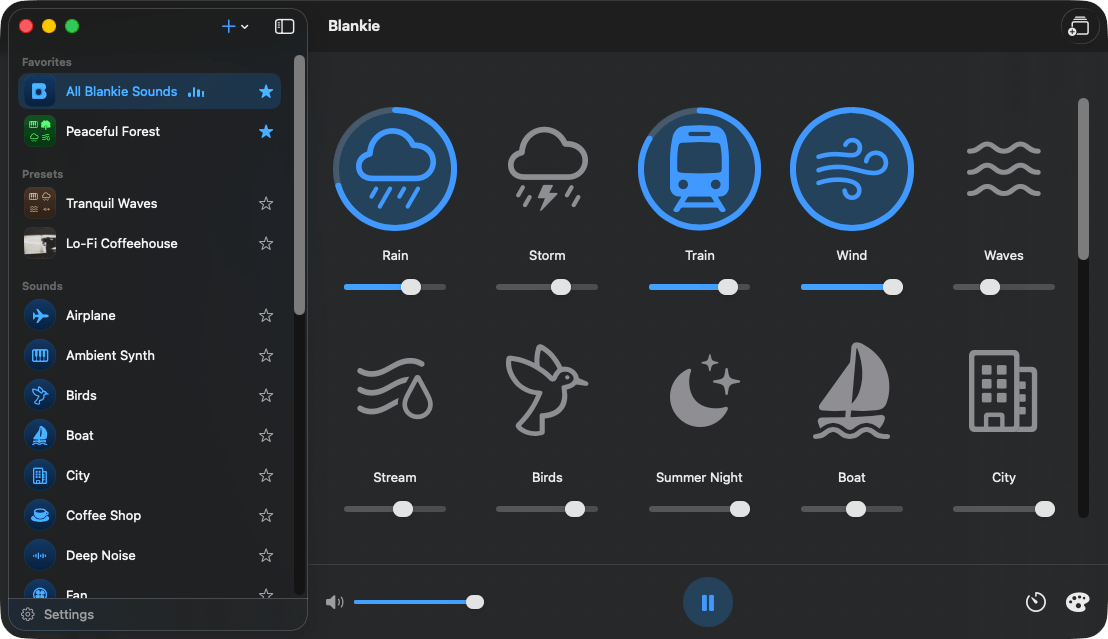
Start by navigating to the "All Blankie Sounds" option in the library (This is the sidebar on Mac or iPad, on iPhone you may need to press the back icon in the top left first). If no sounds are playing tap/click on any tile to start it.
To stop playing a sound, tap it again. To temporarily stop all sounds, press the pause button. Pausing keeps your mix intact, so when you come back, every sound and volume will stay right where you left it.
Build a mix
Turn on a few more sounds. Each playing sound has its own volume slider for you to balance however you like:
- Bring one sound up to a comfortable level and tuck the others well underneath.
- Two to six sounds is the sweet spot. Add too many more after that and they can start to blur together.
Save it as a preset
Built a mix you like? If you're on the "All Blankie Sounds" preset, you can easily save your work as its own preset and it's one tap away next time. Just tap the icon in the top right corner of Blankie. A preset keeps a group of sounds and their volumes together with a name, and other customization options like artwork and an accent color that are specific only to that preset. See Create and Theme Presets for more information.
Next, learn how to do even more
- Import your own sounds. Your fan, rain on your own roof, anything. Imported sounds can mix right alongside built-in sounds.
- Set a sleep timer. Drift off and Blankie pauses itself.
- Control it from anywhere. Media keys, the lock screen, AirPods and even CarPlay.
Keep reading
Create and Theme Presets
Save your favorite ambient sound mixes as presets in Blankie, then give each one its own artwork and accent color. Create, edit, theme, favorite, and switch soundscapes for focus and sleep.
Read the guide Add Your Own SoundsImport Your Own Sounds on Mac
Add your own audio files to Blankie on macOS. Import MP3, M4A, WAV, FLAC, or OGG and mix them right in with the built-in ambient sounds.
Read the guideBlankie is free, forever.
No ads, no paywalls and no privacy tradeoffs. Mix your own ambient soundscapes for focus, rest, and sleep on iPhone, iPad, CarPlay and Mac.
Download