Play Blankie Alongside Music, Podcasts or Audiobooks
Run Blankie's rain, fireplace or coffee shop sounds underneath your music, podcasts or audiobooks on iPhone, iPad and Mac.
On iPhone and iPad, Blankie behaves like a music app. Starting it pauses whatever else was playing, and Blankie takes over the Lock Screen, Control Center and your headphone buttons. Want rain under an audiobook or podcast instead? Turn on Mix with Other Audio and Blankie plays alongside your other apps.
On iPhone and iPad: Mix with Other Audio
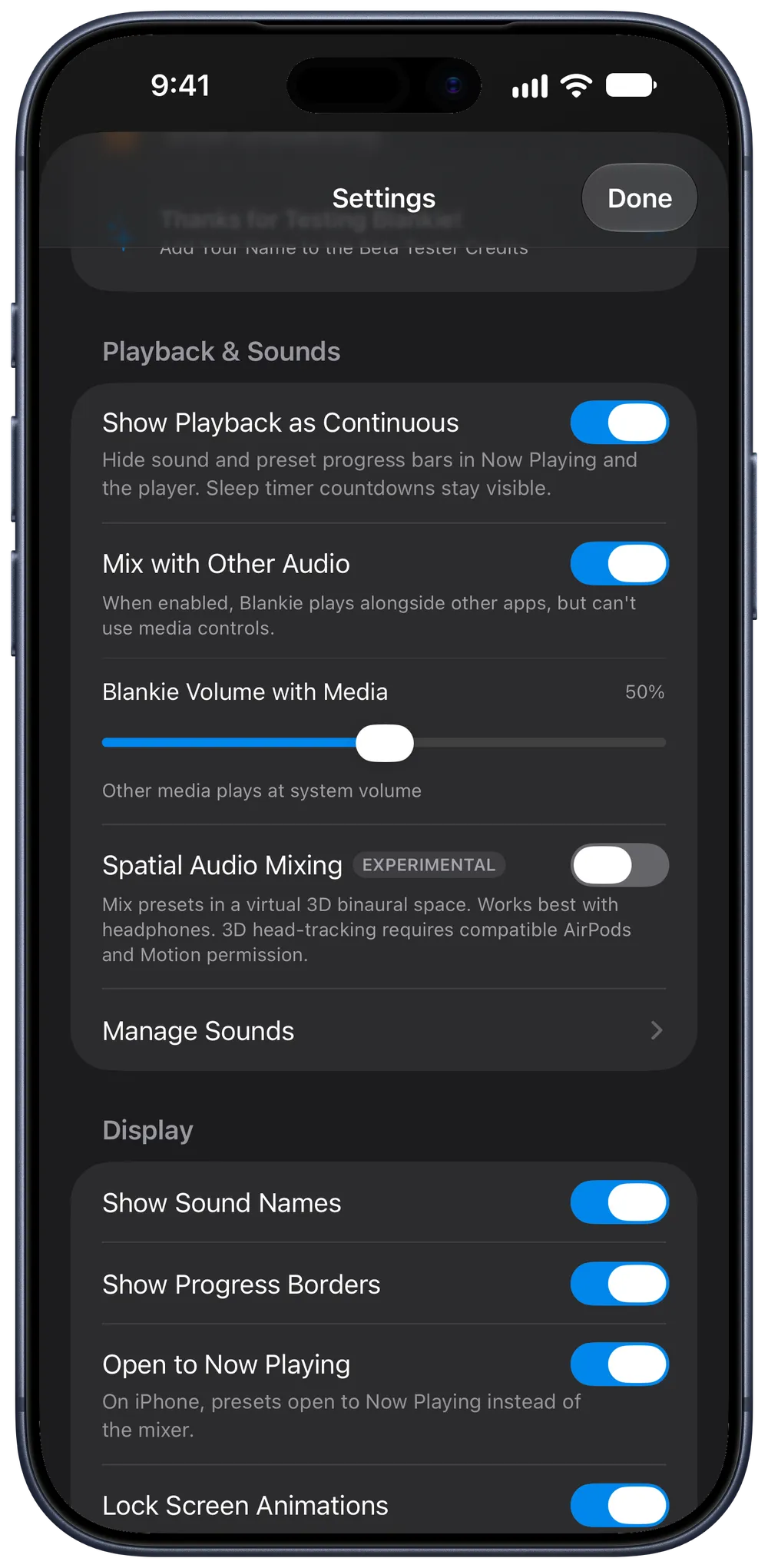
- Open Settings (the gear button in your Library).
- Under Playback & Sounds, turn on Mix with Other Audio.
With Mix with Other Audio turned on:
- Blankie plays alongside other apps. Starting a podcast, audiobook or song won't pause your mix, and starting Blankie won't interrupt your other app.
- The volume slider controls Blankie directly. Instead of changing your phone's system volume, the slider on Blankie's Now Playing screen sets Blankie's own volume so you can lower rain or static underneath a narrator's voice. Turning this on also turns on Blankie's Set Volume action in Shortcuts.
NOTE
While Mix with Other Audio is on, iOS gives the Lock Screen, Control Center and AirPods playback controls to your other media app. Turn Mix with Other Audio back off whenever you want Blankie back on the Lock Screen and headphone buttons. Connecting to CarPlay pauses mixing automatically while you drive so dashboard controls stay dedicated to Blankie.
On Mac
macOS lets apps play audio at the same time by default, so there's no setting to toggle. To balance Blankie underneath another app on your Mac:
- Use the volume slider in the bottom control bar (or inside Blankie's menu bar popover) to lower Blankie's overall volume beneath your music or video app.
- Each sound tile keeps its own relative volume inside your mix.
- If you want your mix to start as soon as you launch the app, turn on Autoplay on Open in Settings → Playback & Sounds.
Continuous playback in Now Playing
On iOS 27, iPadOS 27 and macOS 27, Blankie reports ambient loops to the system as continuous playback. That hides the looping progress bar in Now Playing and on the Lock Screen, while still showing a countdown bar whenever a sleep timer is running. To bring the looping progress bar back, turn off Show Playback as Continuous in Settings → Playback & Sounds.
Keep reading
Control Blankie from Anywhere
Control Blankie with widgets, Siri, Shortcuts, Spotlight, the Mac menu bar, headphones, media keys, the Lock Screen, Control Center and CarPlay.
Read the guide Blankie BasicsFall Asleep with the Sleep Timer
Drift off to rain, waves or white noise and let Blankie pause for you. Set the sleep timer on Mac, iPhone or iPad and it stops on its own.
Read the guide Blankie BasicsQuick Mix, Single Sounds and Presets
How Blankie's presets, Quick Mix soundboard and single-sound playback work, and how to switch between them without overwriting your saved mixes.
Read the guideBlankie is free, forever.
No ads, no paywalls and no privacy tradeoffs. Mix adjustable ambient sounds into your own soundscapes for sleep, rest and focus on iPhone, iPad, CarPlay and Mac.

