Spatial Audio Mixing in Blankie
Place your preset's ambient sounds around you in a 3D binaural space on headphones, with optional head tracking on compatible AirPods.
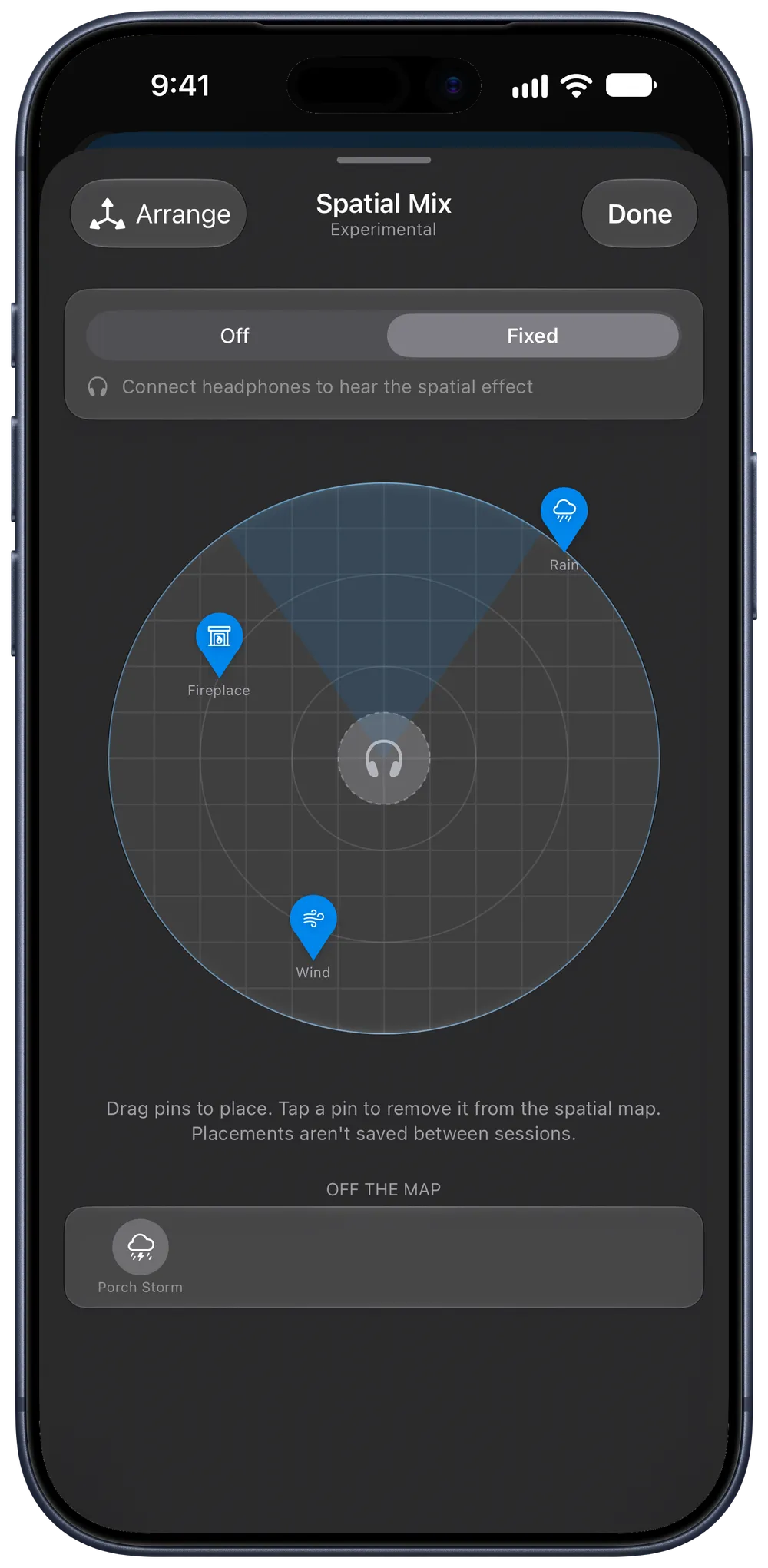
With headphones on, Blankie's experimental Spatial Audio Mixing lets you place the sounds in a preset around you on a 3D map, such as rain out in front, a fireplace to your left and wind farther back in the trees.
Turn on Spatial Audio Mixing
- Open Settings ( in your Library or ⌘, on Mac).
- Under Playback & Sounds, turn on Spatial Audio Mixing.
Turning this on adds a Spatial Mix button to your presets.
Place sounds around you
- Open a preset with a few sounds playing and tap or click the Spatial Mix button.
- At the top of the Spatial Mix view, switch from Off to Fixed (or Head Tracked when compatible AirPods are connected).
- Drag each sound's pin around the circular map. Moving a pin around the circle changes its direction. Dragging it closer to or farther from the center changes its distance (from half a meter out to three meters).
Two controls help you adjust the layout:
- Arrange: if your pins are stacked on top of each other, tap Arrange to spread every active sound evenly around the circle.
- Off the Map: tap any pin on the map to take it out of 3D space and move it to the Off the Map row below. A sound in Off the Map plays normally in stereo while the rest of your mix stays placed around you. Tap it again to put it back on the map. Taking the last pin off the map turns Spatial Mix off.
Fixed vs. Head Tracked
- Fixed renders the 3D binaural space on any wired or wireless headphones. When you turn your head, the soundstage moves with you.
- Head Tracked is available when you're wearing compatible AirPods and have granted Motion permission. It anchors your sounds in the room, so turning your head to the right points you toward the sounds placed on your right. A shaded wedge on the map rotates live to show the direction you're facing. If you take your AirPods out mid-session, Blankie switches back to Fixed without interrupting playback.
Session-only placement
Spatial placements apply to your current listening session only and reset when you turn Spatial Mix off. Your saved preset's sounds and volume sliders stay unchanged.
Keep reading
Create and Theme Presets
Save your favorite ambient sound mixes as presets in Blankie, then give each one its own artwork and accent color. Create, edit, theme, favorite and switch soundscapes for sleep and focus.
Read the guide Blankie BasicsPlay Blankie Alongside Music, Podcasts or Audiobooks
Run Blankie's rain, fireplace or coffee shop sounds underneath your music, podcasts or audiobooks on iPhone, iPad and Mac.
Read the guide Blankie BasicsControl Blankie from Anywhere
Control Blankie with widgets, Siri, Shortcuts, Spotlight, the Mac menu bar, headphones, media keys, the Lock Screen, Control Center and CarPlay.
Read the guideBlankie is free, forever.
No ads, no paywalls and no privacy tradeoffs. Mix adjustable ambient sounds into your own soundscapes for sleep, rest and focus on iPhone, iPad, CarPlay and Mac.

